
How to update your menu without reprinting QR codes
Adding a dish, adjusting a price or marking an item as unavailable? An editable QR code menu lets you update your online menu without replacing table materials. Your Atablo QR code opens your restaurant page, whose content can change throughout service.
Steps in Atablo
-
Open the menu to update
Sign in to Atablo, select your restaurant and open Menus. Choose the relevant menu.
-
Edit menu information
Open a dish to change its name, description, price or photo. Check variant prices too if you offer multiple sizes or formats.
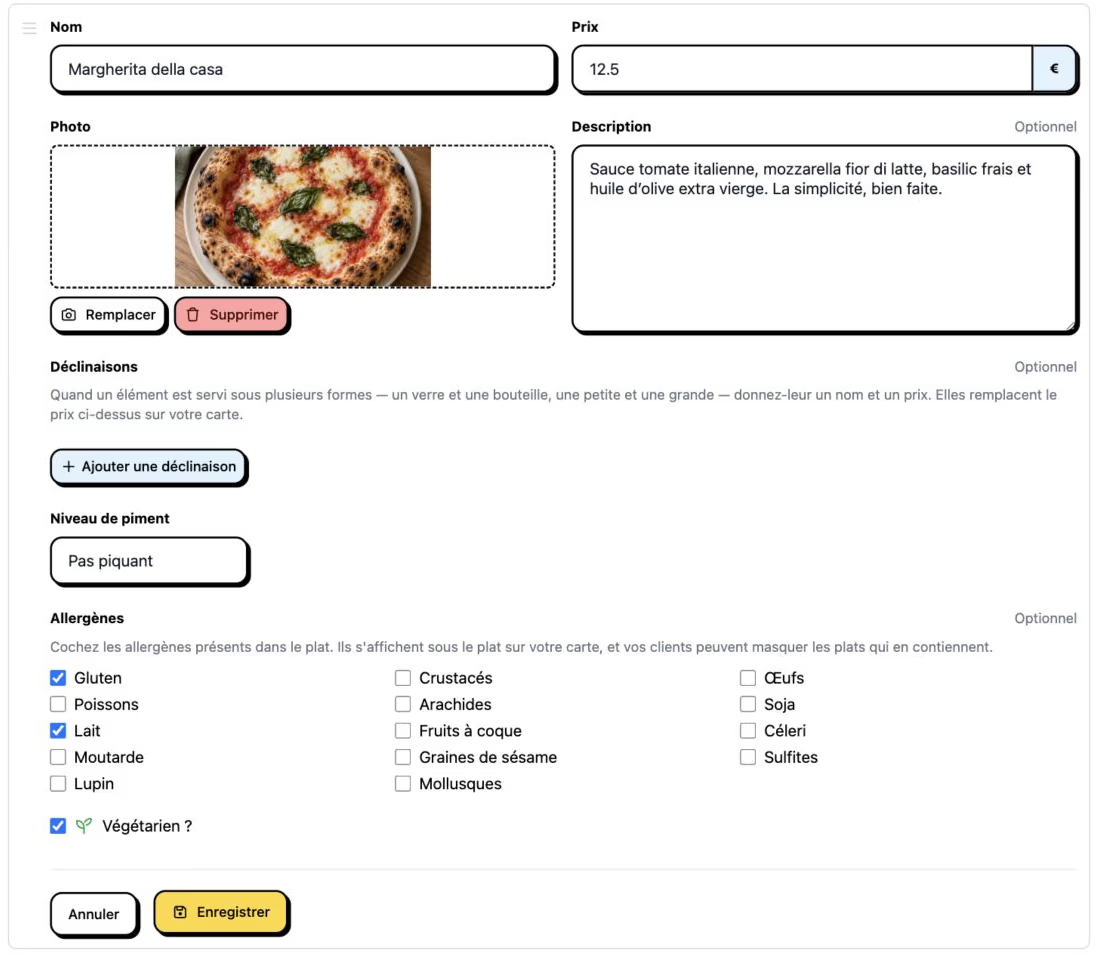
Edit the dish information and save. Changes to a published menu are visible immediately. French interface shown. Click to enlarge. -
Update dish availability
Add new dishes to the appropriate category. Hide a sold-out dish instead of deleting it so you can show it again later.
-
Save your changes
Saved changes to a published menu are visible immediately. Publish an unpublished menu when you are ready to offer it to customers.
-
Check an existing printed QR code
Scan one of your printed codes on your phone and open the relevant menu. Refresh the page if it was already open to see the latest changes.
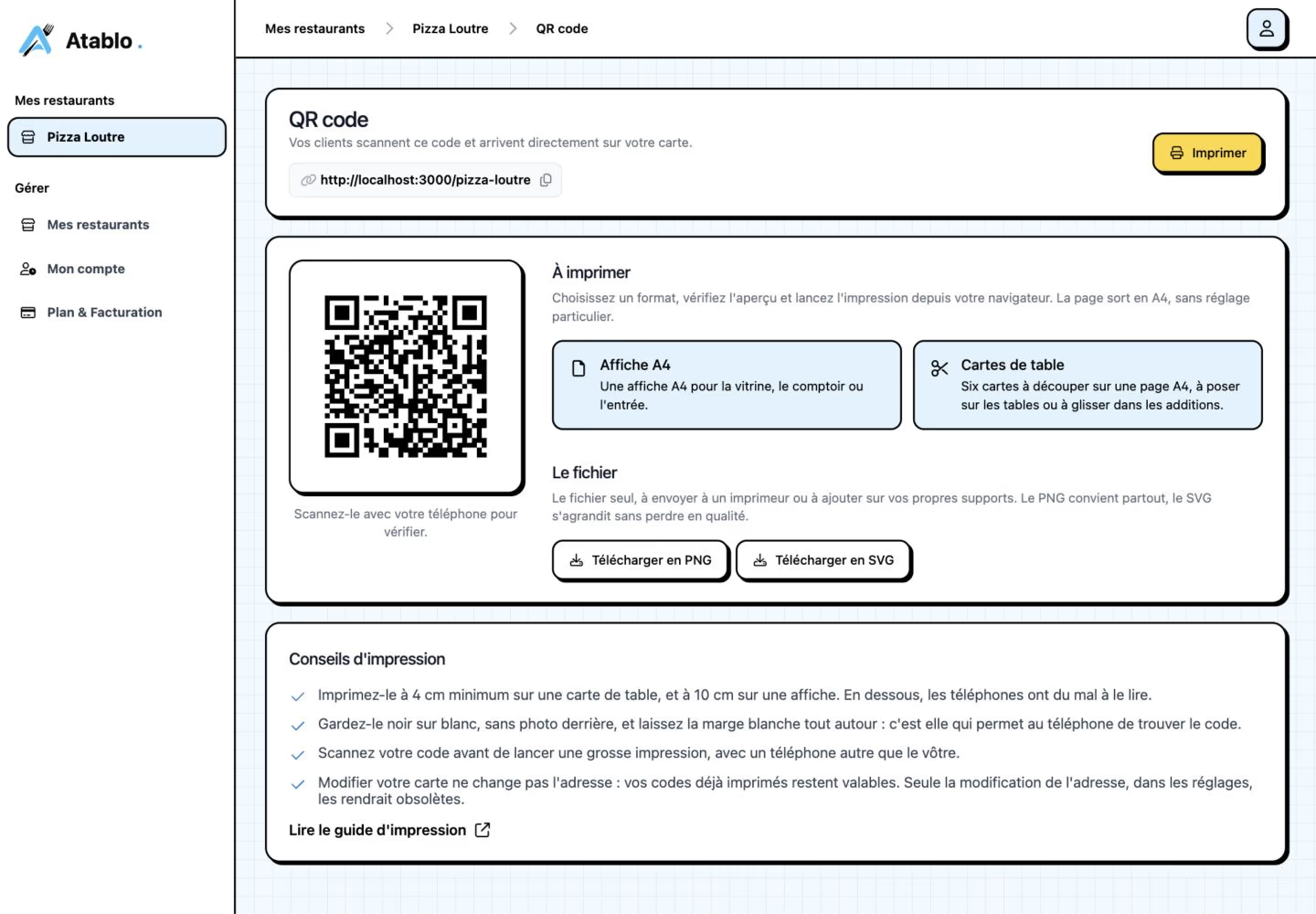
The QR code links to the restaurant page. Updating dishes keeps this link unchanged; changing the restaurant address means reviewing your printed materials. French interface shown. Click to enlarge.
Why does the QR code stay the same?
The QR code points to your restaurant’s public page, updated through Atablo. Changing a dish, price or photo does not require a new code.
Check that your restaurant and menu are online so customers can access them.
To prepare several changes before showing them, duplicate your menu and edit the unpublished copy.