
How to prepare a new menu without changing your live menu
Planning seasonal dishes, new recipes or updated prices while service continues? Duplicate your menu in Atablo and work on an unpublished copy. Customers keep browsing your current menu until you publish the new one.
Steps in Atablo
-
Duplicate your current menu
Sign in to Atablo, open your restaurant and select Menus. Choose Duplicate in the actions for the menu you want to reuse.
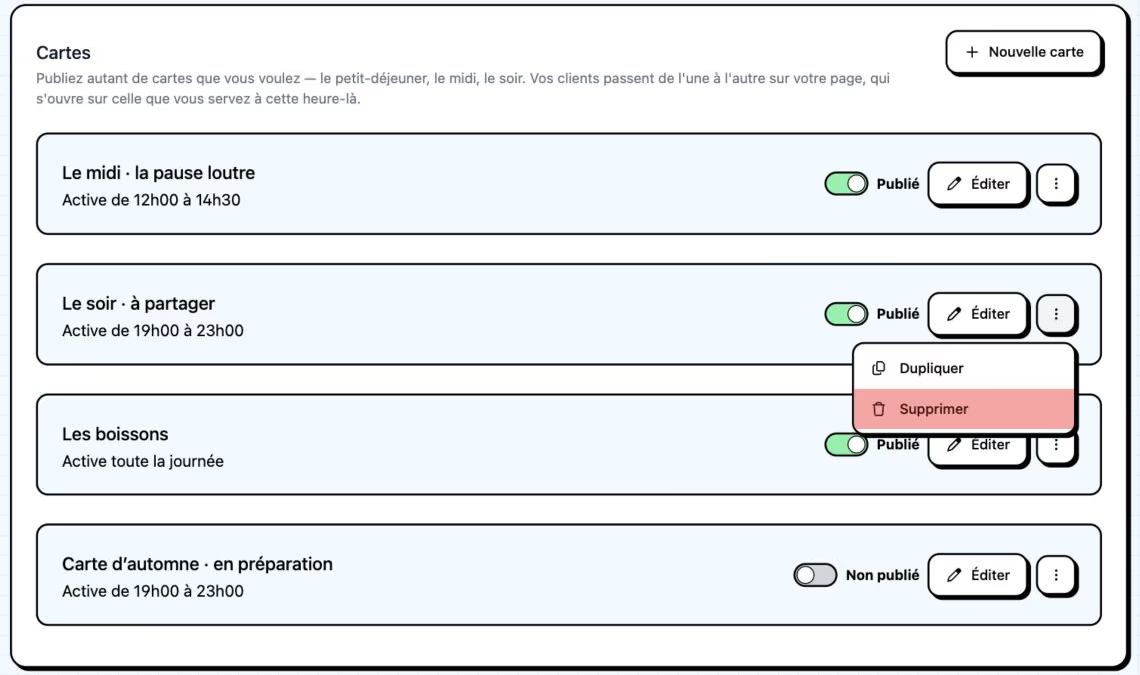
Open the actions for the menu you want to reuse, then choose Duplicate. French interface shown. Click to enlarge. -
Identify your working copy
The copy is unpublished. Open it and give it a clear name, such as “Autumn menu”. Categories, dishes and dish photos are copied from the original.
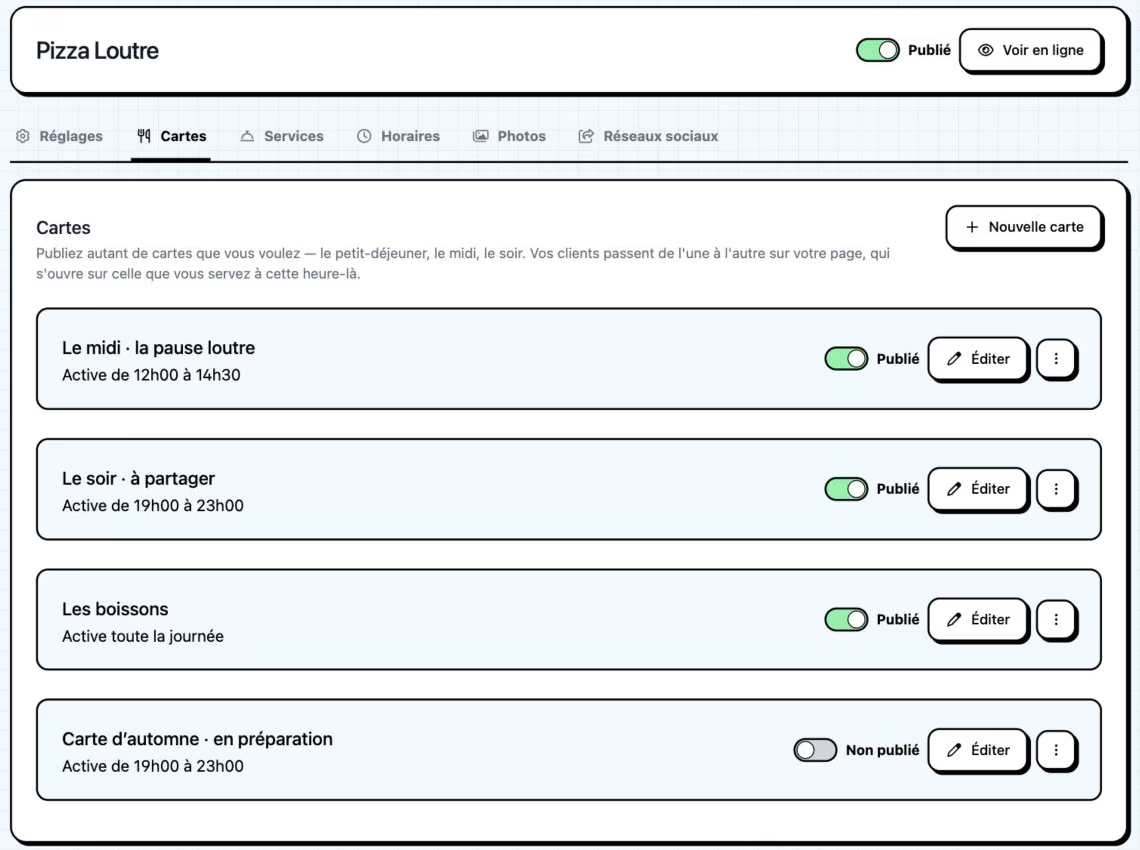
The autumn menu is an unpublished working copy: customers continue to browse the existing live menus. French interface shown. Click to enlarge. -
Prepare your new offer
Edit dishes, descriptions and prices in the copy. Add or remove items and check allergens, variants and each dish’s visibility.
-
Check serving hours and preview
Set serving hours if needed: they are not copied during duplication. Use Preview to review your menu before publishing.
-
Publish the new menu
When ready, return to Menus and publish the copy. It becomes available alongside your other published menus.
-
Unpublish the old menu if replaced
Unpublish the old menu to hide it from customers. Keep it in your account to reuse later.
What customers see while you work
Changes to an unpublished copy do not alter dishes in the original menu. Editing a published menu, however, changes its content immediately.
Publishing the new menu does not automatically remove the old one. Unpublish the old menu if you no longer want to offer it.
The theme, colour and restaurant photos are shared across menus. Changing them is not isolated to your unpublished copy.