
How to highlight vegetarian dishes on your online menu
Do your customers want to find vegetarian options quickly? Mark vegetarian dishes in your Atablo digital menu. A marker appears alongside them and a filter lets customers display just these options on your QR code menu.
Steps in Atablo
-
Open the dish form
Sign in to Atablo, select your restaurant and open Menus. Open the menu and edit the relevant dish.
-
Mark it as vegetarian
Check the recipe with your kitchen, then select the vegetarian option to identify the dish as vegetarian.
-
Save and complete your menu
Save the dish and repeat for other vegetarian dishes. Add a description and an optional photo to present each option.
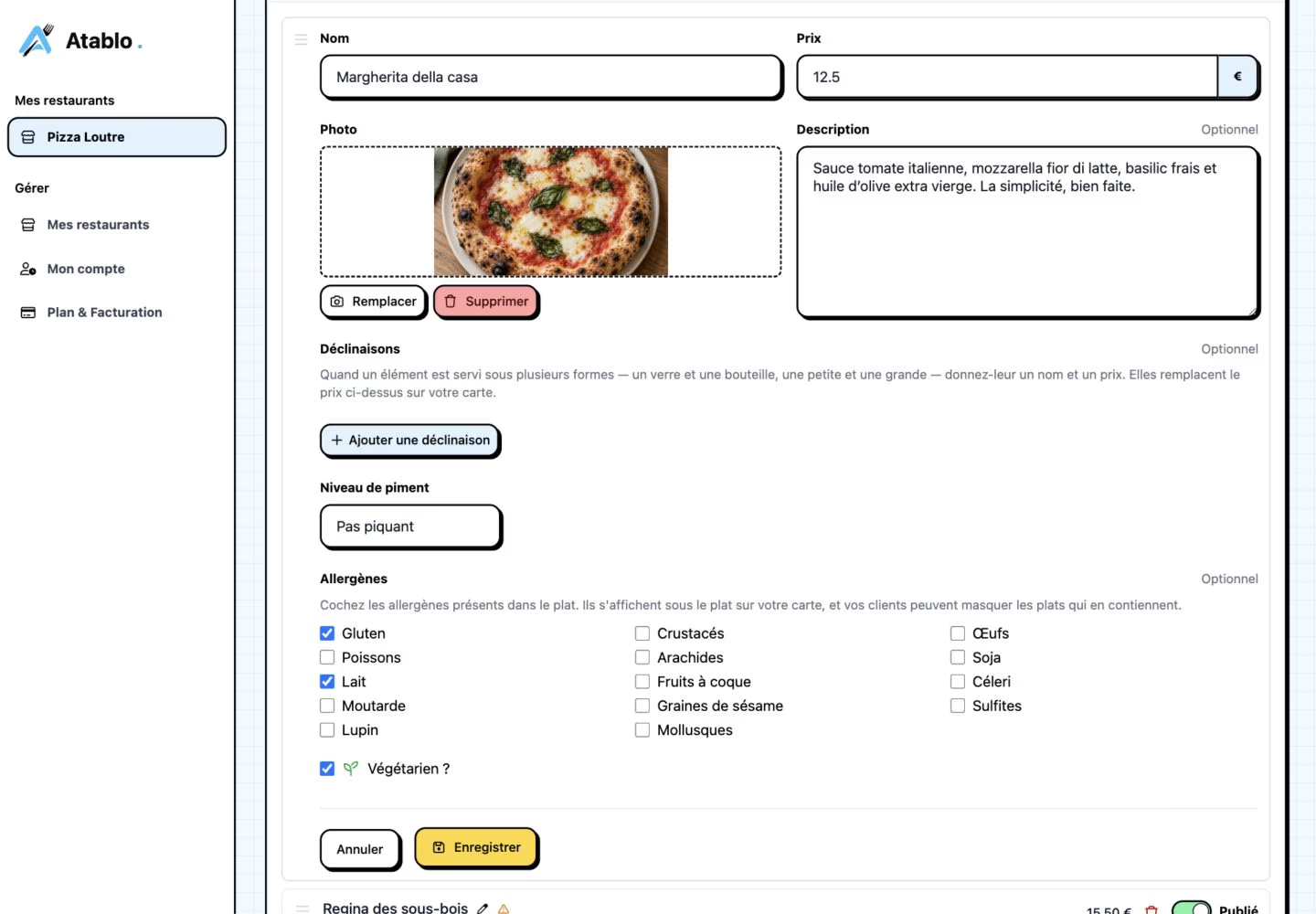
Select Vegetarian in the dish form, then save. Example: Pizza Loutre’s Margherita, shown in the French interface. Click to enlarge. -
Check publication
Changes to an already published menu are visible immediately. Otherwise publish the menu when ready and check that the restaurant is online.
-
Test the customer filter
Open the public menu on your phone. Check the marker on the relevant dishes, then turn on the Vegetarian filter: only dishes marked vegetarian remain visible. Turn it off to see the other dishes again.
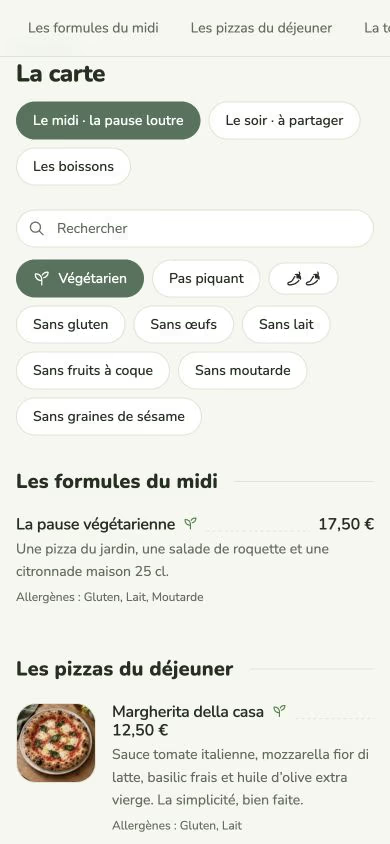
Customer view with the Vegetarian filter active: only dishes marked vegetarian remain visible. French interface shown. Click to enlarge.
A filter based on your menu information
The vegetarian filter is offered when the displayed menu contains dishes marked vegetarian. An unmarked dish will not appear while this filter is active.
Review this setting whenever a recipe changes. Vegetarian status and allergens are recorded separately.
Vegetarian options stay in their usual categories, so customers can find them without a separate menu.