
How to offer an online restaurant menu with allergen filters
Looking for an online restaurant menu that customers can filter by declared allergens? Record allergens for each dish in Atablo. Customers can then hide dishes declaring a selected allergen directly on your QR code menu.
Set up allergens in Atablo
-
Open your menu
Sign in to Atablo, select your restaurant and open Menus. Choose the menu you want to edit.
-
Edit a dish
Open the dish editing form. In Allergens, select the allergens present using information checked with your kitchen.
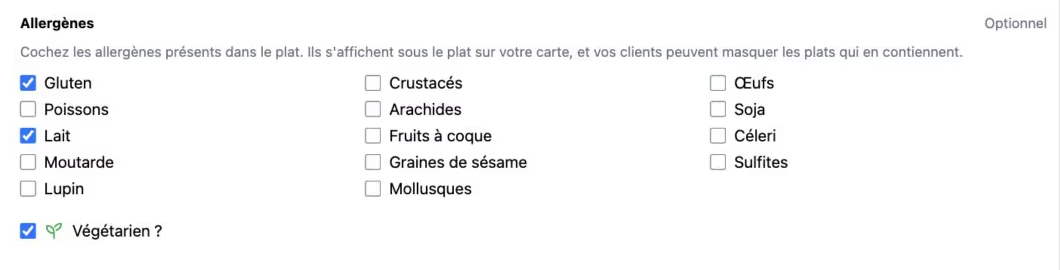
Select the allergens present in the recipe. Here, the Margherita declares gluten and milk. French interface shown. Click to enlarge. -
Save the information
Save the dish and repeat for the others. Update these details whenever your recipes change.
-
Make the menu visible
Publish the menu if needed and check that your restaurant is online. Saved changes to an already published menu are visible immediately.
-
Test the public menu filters
Open your menu on a phone. Select a filter for a declared allergen, such as milk: dishes declaring that allergen disappear. Turn the filter off to show them again.
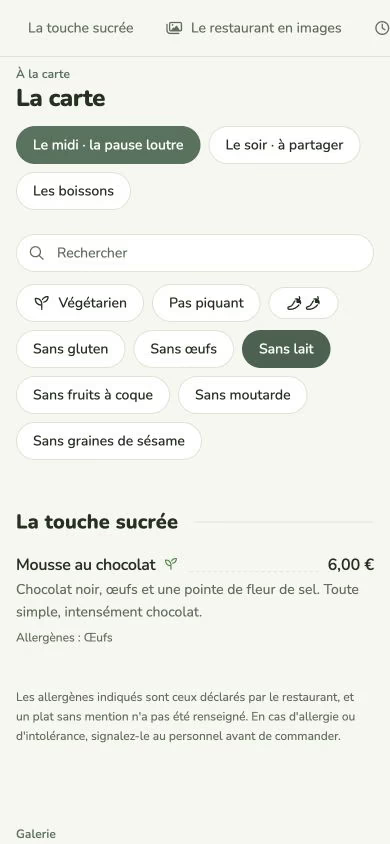
The milk exclusion filter hides dishes declaring milk. Chocolate mousse remains visible with its declared allergen: eggs. French interface shown. Click to enlarge.
How customers use the filters
Available filters match the allergens declared in the menu being displayed. Customers can select multiple allergens to exclude.
Filtering relies on your declarations. A dish with no recorded allergens may remain visible: a missing declaration does not guarantee that an allergen is absent.
The menu reminds customers to tell staff about any allergy or intolerance before ordering.